
10 Ways To Enhance the Appearance of Your Photos
Do you want to make your photos look more professional and polished? Learning a few simple editing techniques can transform your pictures from ordinary to extraordinary. You can elevate your images by adjusting brightness, sharpening details, and applying creative effects. With the right tools and a little practice, you can bring out the best in every shot, making your memories even more vibrant.
We'll explore several easy ways to enhance your photos. You will learn how to make basic adjustments, use advanced techniques, and apply creative filters to give your pictures a unique look. These tips will help you create stunning images for sharing on social media, printing for your home, or compiling into a special project like a happy birthday slideshow.
By the end, you will have the knowledge to edit your photos confidently. You can improve your pictures with simple tweaks or more complex adjustments, all with the goal of making them look their absolute best. Let's get started on making your photos shine.
Adjust the Exposure
Adjusting exposure is a great first step to improving a photo. Exposure refers to the overall brightness or darkness of an image. A photo that is too dark (underexposed) loses details in the shadows, while a photo that is too bright (overexposed) loses details in the highlights. Most photo editing software includes a simple slider to adjust exposure. Move the slider to the right to brighten the image or to the left to darken it. The goal is to find a balance where you can see details clearly in both the light and dark areas of the photo without making it look unnatural.
Correct the White Balance
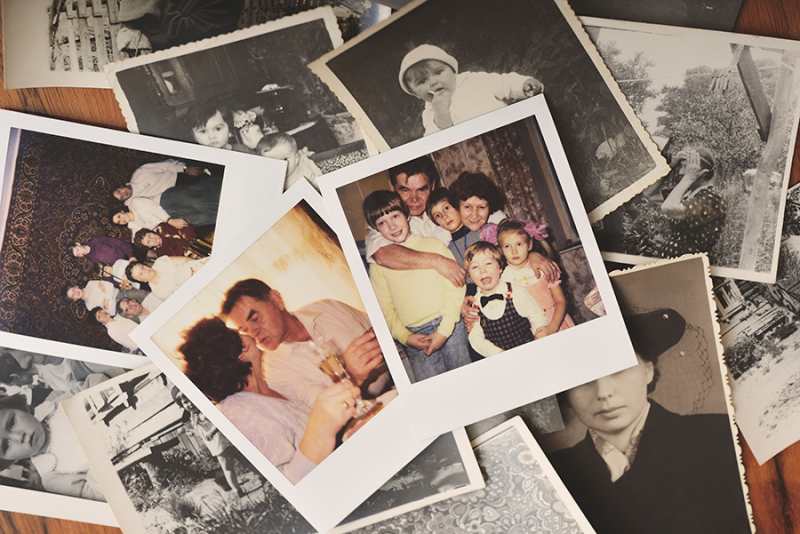
Correcting the white balance helps your colors look true to life. White balance removes unrealistic color casts so that objects appearing white in person also appear white in your photo. Have you ever taken a picture indoors and noticed it had a yellowish tint? That's an issue with white balance. Editing apps often have an "auto" white balance tool that works well in most situations. For more control, you can use a temperature slider to make the photo warmer (more yellow/orange) or cooler (bluer). You can also use a tint slider to adjust between green and magenta tones.
Boost the Contrast
Boosting the contrast can make your photos more dynamic. Contrast is the difference between the light and dark areas of an image. Increasing contrast makes the bright parts of your photo brighter and the dark parts darker. This separation can add depth and make the subject pop. Be careful not to add too much contrast, as it can cause you to lose details in the highlights and shadows. A subtle adjustment is often all you need to make your photo more visually appealing.
Enhance the Vibrance and Saturation
Enhancing vibrance and saturation can make the colors in your photo more vivid. While they both impact color intensity, they work differently.
- Saturation uniformly increases the intensity of all colors in the image. Pushing it too far can make colors, especially skin tones, look unnatural.
- Vibrance is a smarter tool. It boosts the less-saturated colors more than the already-saturated ones, and it protects skin tones from becoming overly orange. For most photos, adjusting vibrance provides a more natural-looking result.
Sharpen Your Image
Sharpening your image can bring out fine details and make it appear crisper. This technique works by increasing the contrast along the edges of objects in your photo. Most editing tools have a sharpening slider. A little sharpening goes a long way. If you apply too much, you may introduce unwanted graininess or "halos" around objects. A good approach is to zoom in on your photo to 100% to accurately judge the effect as you apply it. This makes sure you enhance the details without overdoing it.
Crop for Better Composition
Cropping your photo can significantly improve its composition. This technique allows you to remove distracting elements from the edges of the frame and draw the viewer's eye to the main subject. You can also use cropping to follow compositional guidelines like the rule of thirds. Imagine your photo is divided into a 3x3 grid. Placing your subject along the lines or at their intersections can create a more balanced and interesting image. Cropping also lets you change the aspect ratio to fit specific formats, like a square for Instagram.
Straighten the Horizon
Straightening a crooked horizon is a quick fix that makes a big difference. An uneven horizon line, especially in landscape or seascape photos, can be distracting and make the image feel unbalanced. You can either use an automatic function or manually rotate the image until the horizon is perfectly level. This simple adjustment instantly gives your photo a more professional and composed look.
Reduce Digital Noise
Reducing digital noise helps clean up your photos, especially those taken in low light. Noise appears as grainy specks across your image and can reduce its clarity. It happens when you use a high ISO setting on your camera to capture a photo in a dark environment. Photo editing software offers noise reduction tools that smooth out these specks. Apply this effect carefully, as too much noise reduction can make your photo look overly soft and blur important details.
Use Filters and Presets
Using filters and presets is a fun and easy way to give your photos a consistent style. Filters are pre-made settings that apply a combination of adjustments, like changes to color, contrast, and brightness with a single click. Many apps offer a variety of filters, from vintage looks to modern, vibrant styles. Presets, which are common in software like Adobe Lightroom, are similar but often offer more customization. You can create your own presets to quickly apply your signature editing style to multiple photos.
Make Selective Adjustments
Making selective adjustments allows you to edit specific parts of your photo without affecting the entire image. For example, you might want to brighten just the subject's face or enhance the blue of the sky. Many advanced editing tools provide brushes or masks that let you "paint" your edits onto a particular area. This technique gives you precise control and can help you highlight the most important elements of your photograph, guiding the viewer's attention exactly where you want it.
Next Steps for Your Photos
Learning these photo enhancement techniques gives you the power to improve your pictures and express your creative vision. By making simple adjustments to exposure, color, and composition, you can turn any photo into a piece of art. The key is to practice and experiment with different tools to see what works best for your images.
Now you have the skills to make your photos stand out. You can apply these methods to any picture, whether it's for your personal collection, preserving family memories, or creating a professional portfolio. Start by picking a few of your favorite photos and see how you can enhance them using these tips.